I tried to filter to the best of my ability, but I can’t seem to be able to get rid of the warnings in the logs post backup
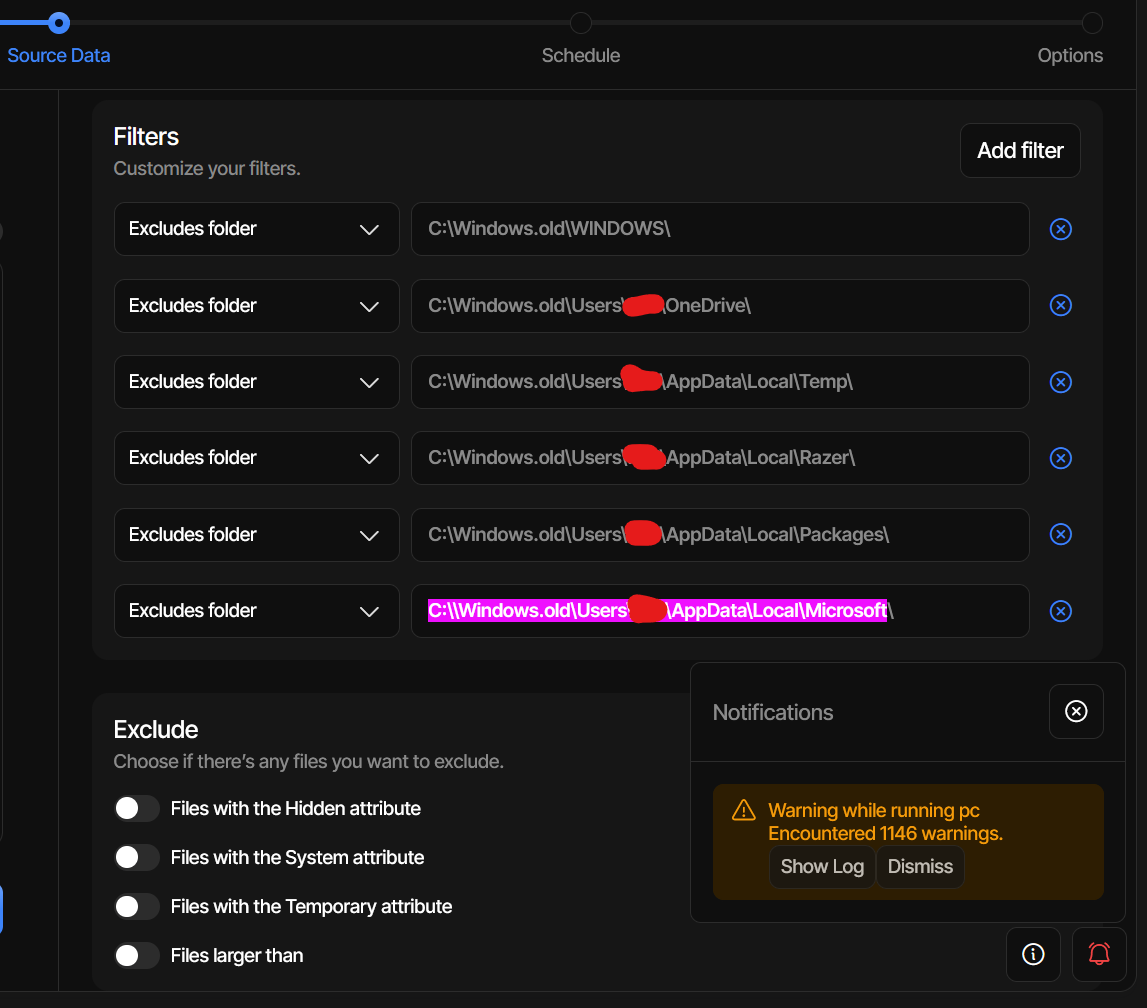
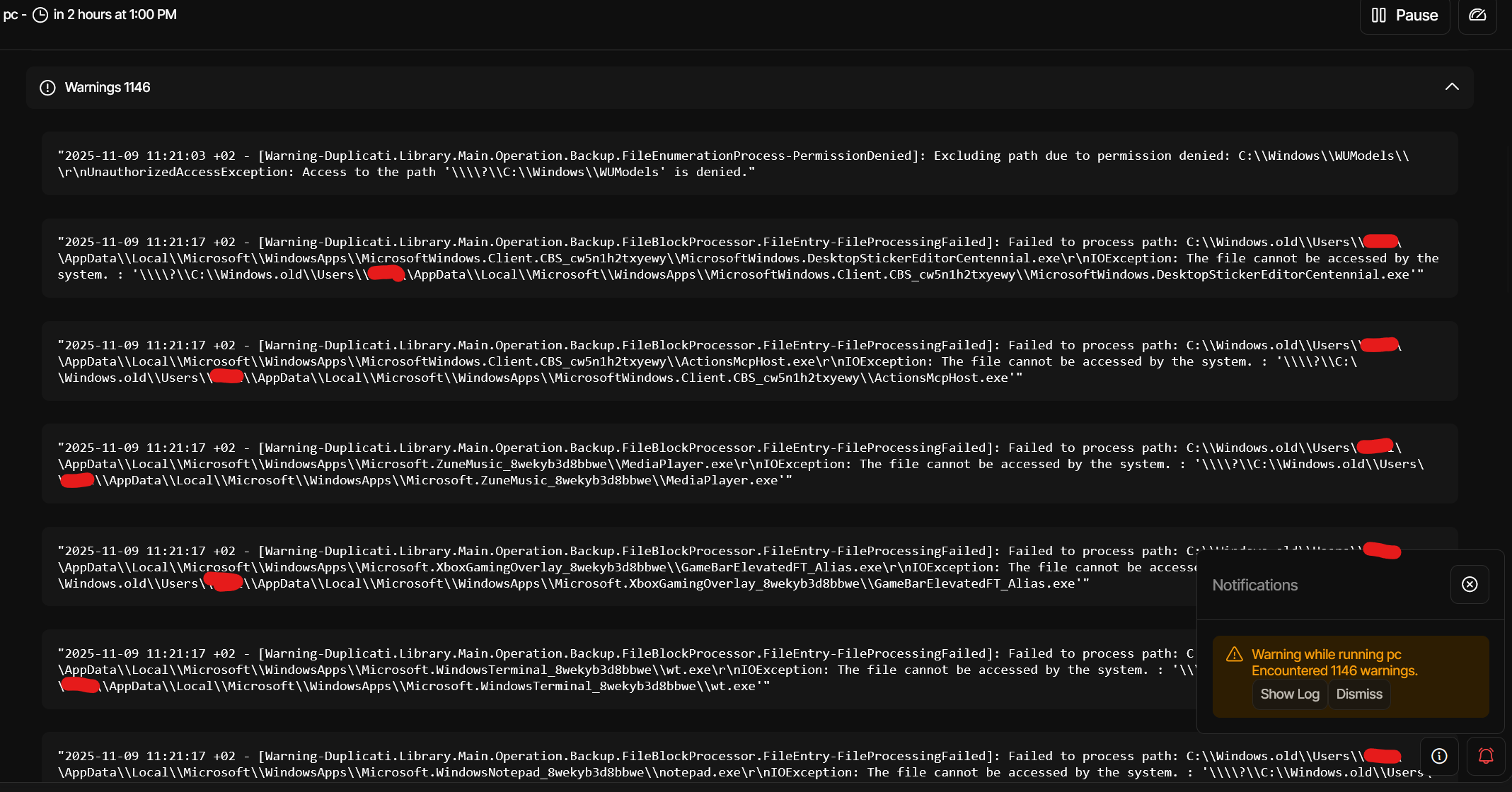
Someone? Please  ? I can’t seem to find any way of getting rid of them
  --suppress-warnings (String): Suppress specific warnings
    Suppress warnings and log them as information instead. Use
    this if you need to silence specific warnings. This option
    accepts a comma separated list of warning IDs.
For your screenshot, FileProcessingFailed might reduce the amount.
But it might also suppress warnings that you actually prefer to be seeing.
You might want to run Duplicati as a user that actually gets access there.
Use the Start menu for Duplicati to see if “run as administrator” can help.
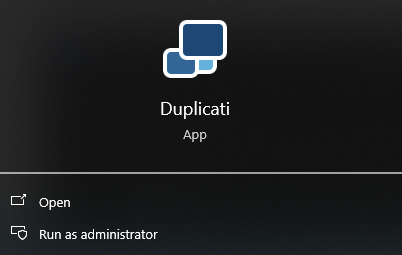
If you already know your user can’t admin, it gets harder.
Switching user changes database location. Another way:
WindowsService
but that also needs administrator privilege from any user.
It also doesn’t have the Tray Icon, but one can be added.
In terms of access, it runs as SYSTEM with good access.
Typically an elevated administrator also has good access.
If that’s enough, you can add a Duplicati desktop shortcut.
Righ-click → Properties → Advanced will let you set it for:
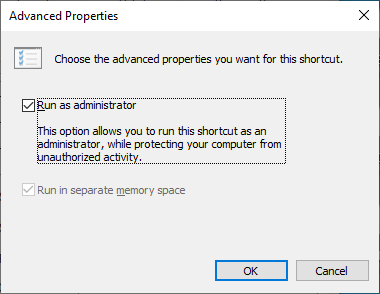
but you still have to answer its UAC prompt, unlike service.
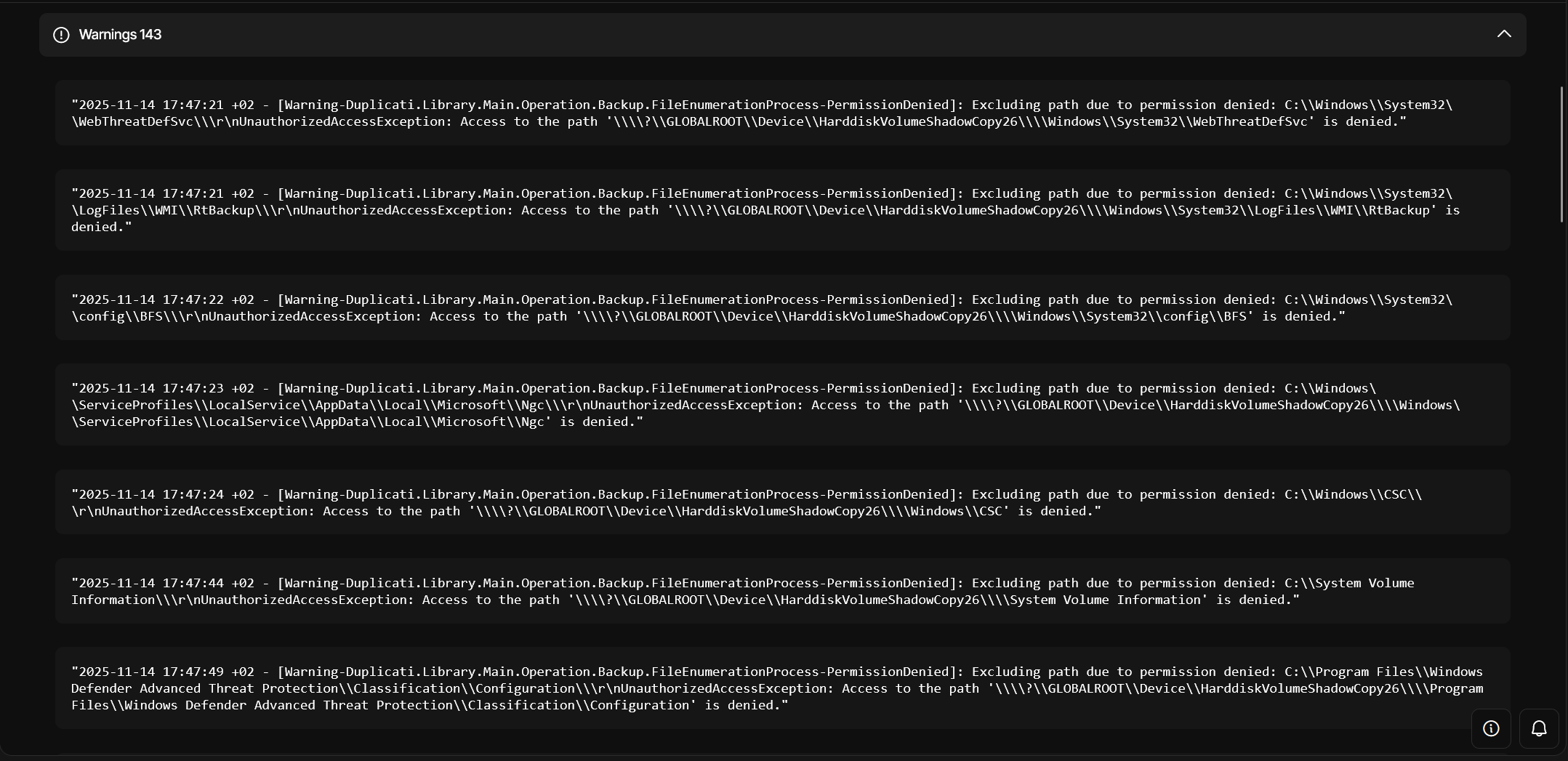
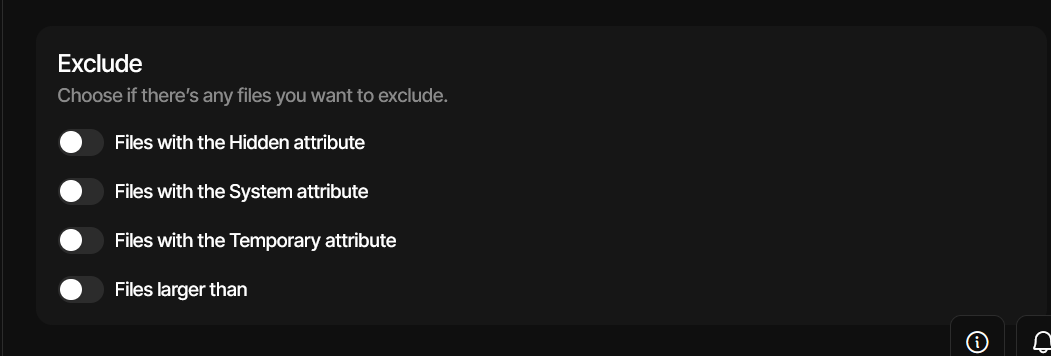
Duplicati relies on whatever attributes Windows and applications chose to set.
Oddly, the Windows system doesn’t mark most of its own files as system files.
You can see for yourself with the dir or attrib command, or using File Explorer,
which lets you turn on an Attributes column showing the usual letter codes.
The early history of Windows file attributes, and why there is a gap between System and Directory explains a bit, and links to more. Attributes seem hard to predict.
If you’re going to use Attributes, make sure yours stick in the config. There was once a bug, but the latest Stable Duplicati keeps the chosen excludes I believe.
Another way to look at this is – what need do you have to restore Windows from backup? This is the kind of thing image backups can do, but file backups need a Windows already installed – and restoring on top of that would likely just break it.
There are a few files in C:\ that Microsoft marked as System. Many more aren’t…
C:\>dir /as C:\
05/26/2021  03:32 PM    <DIR>          $Recycle.Bin
05/31/2020  08:30 PM               112 bootTel.dat
11/12/2025  01:49 PM    <DIR>          Config.Msi
05/31/2020  09:16 PM    <JUNCTION>     Documents and Settings [C:\Users]
11/12/2025  08:29 PM             8,192 DumpStack.log
11/13/2025  09:30 PM             8,192 DumpStack.log.tmp
11/14/2025  07:09 AM    13,691,035,648 hiberfil.sys
11/13/2025  09:30 PM    51,539,607,552 pagefile.sys
11/13/2025  09:30 PM       268,435,456 swapfile.sys
11/14/2025  07:15 AM    <DIR>          System Volume Information
Some of these are not even normal-use files, so one needs to decide on them.
Predefined filter groups has some likely-dated predecided groups you can use.
Commandline help can even give a personalized-to-user list of a group’s detail.
You can also do something like include only things you think you might restore.
What matters most is your personal data – Windows can simply get reinstalled.
I can give you a little more guidance based on my own C: backup experiment, however I’m not sure I’d recommend that approach unless one is up for restore.
Hello,
Thank you so much for taking the time to submit such a detailed and authentic response. I really do appreciate it!
From what I understand, tl;dr, I should use Duplicity as an inclusive backup, rather then exclusive one. Ie. I should pick and choose what I want to have backed up (what’s important to me to later restore), rather then including the entire C: drive, and trying to exclude C:\Windows (for example) and some specific sub-directories of it.
Is that how you would summaries it too?

That’s a very nice phrasing, although it’s likely true that people do it differently.
There’s also an idea that if one isn’t sure what’s important, backup generously.
Maybe come disaster time, expert help can be found to try to reassemble well.
I follow both plans. One is a small selective inclusive cloud backup more often.
Second backup used to be an image backup to USB drive (cheaper) less often.
Macrium Reflect Free could restore individual files, so I just easily grab them all.
I use past tense because it’s discontinued, but other options can do similar work somewhat less nicely IMO. I’m experimenting with a file-oriented C:\ backup too.
As you found, one has to run as a capable user and exclude things, but perhaps warnings will still come out in small numbers. As noted, SYSTEM is a little better.
Aside from specialty test files and other personalized things, my C:\ excludes are:
Windows unusual
C:\$Recycle.Bin\
C:\hiberfil.sys
C:\pagefile.sys
C:\swapfile.sys
C:\System Volume Information\

Browser caches
C:\Users\*\AppData\Local\Microsoft\Edge\User Data\Default\Cache\Cache_Data\
C:\Users\*\AppData\Local\Microsoft\WindowsApps\
C:\Users\*\AppData\Local\Mozilla\Firefox\Profiles\*\cache2\
C:\Users\*\AppData\Roaming\Mozilla\Firefox\Profiles\*\storage\

Virtual drives
C:\Users\*\OneDrive\
and since this is trying to approximate image backup, I also get rest of Windows.
Windows update replaces Windows files, and that really slows down the backup.
Image backups slow down when drive defragmentation rearranges drive content.
My other C:\ backup uses a different program, runs as an elevated administrator, and therefore has somewhat more exclusions. I think a future Duplicati will allow backup of files without any access restrictions, using SeBackupPrivilege method.
Meanwhile, if I wanted a backup without Windows, I’d likely exclude C:\Windows, however one legacy use of Windows is Duplicati use of a SYSTEM profile folder:
C:\Windows\System32\config\systemprofile\AppData\Local\Duplicati
Current Duplicati Windows service uses C:\ProgramData\Duplicati, but who knows whether your systemprofile might have some app-related things. It’s a bad place to keep anything, because Windows version updates move data into C:\Windows.old.
Why is that? Is that for a different user? Even elevated administrator can fix that.
I also try to add an Excludes Folder filter, but when I type in the path, it changes the chosen to Excludes Expression and when I change it back to Excludes Folder and continue to edit the path, it changes it back to Excludes Expression. Why is this so buggy  how do I add a new filter that is Excludes Folder and stays that way?

Apparently nobody noticed that one, so thanks for reporting. This is new UI, right?
Anything new tends to be buggy awhile. This one’s had only weeks of prime time. GUI filter builder has a difficult job. It doesn’t actually store your dropdown choice, but has to regenerate it from the raw filter as CLI would use. I’ll link to docs later…
In new UI, add backslash at end. That’s internal form, but old UI adds it.
Path representations in Filters in Duplicati (but nothing covers GUI use):
Internally, Duplicati represents folders with a trailing path separator, which makes it easy to distinguish between the two types. This distinction is important when constructing filters
Does earlier explanation below fit? If so, please update to 2.2.0.1.
Improve support for parsing filter options from ngax #374 is that issue (now fixed).
Exclude folder doesn’t add trailing slash that means folder #406 now open on this.
Thanks for getting back to me. I really appreciate your help.
Today I got frustrated with Duplicati and stepped away to rest.
One thing I found: in the web UI, when I add more than ten directory exclusions the list shows all the items but there is no scrollbar in the filter window. I can delete entries until everything fits; otherwise I cannot scroll through the full list.
More importantly, I cannot get Duplicati to back up my Backblaze log files. Those files are critical to me yet neither running under my user nor as the SYSTEM account gives access. I spent a long time building the exclusion list but now the larger issue is data I need is not being backed up and that is upsetting.
Could you help me troubleshoot the log‑file access problem and whether the missing scrollbar in the UI is a known limitation?
Thanks again for your time.
"2025-11-18 19:17:48 +02 - [Warning-Duplicati.Library.Main.Operation.Backup.FileBlockProcessor.FileEntry-PermissionDenied]: Excluding path due to permission denied: C:\\ProgramData\\Backblaze\\bzdata\\bzlogs\\bzrestore\\bzrestore_20251109_09.log\r\nUnauthorizedAccessException: Access to the path '\\\\?\\GLOBALROOT\\Device\\HarddiskVolumeShadowCopy25\\\\ProgramData\\Backblaze\\bzdata\\bzlogs\\bzrestore\\bzrestore_20251109_09.log' is denied."
"2025-11-18 19:18:18 +02 - [Warning-Duplicati.Library.Main.Operation.Backup.FileBlockProcessor.FileEntry-PermissionDenied]: Excluding path due to permission denied: C:\\hiberfil.sys\r\nUnauthorizedAccessException: Access to the path '\\\\?\\GLOBALROOT\\Device\\HarddiskVolumeShadowCopy25\\\\hiberfil.sys' is denied."
sc qc Duplicati
[SC] QueryServiceConfig SUCCESS

SERVICE_NAME: Duplicati
        TYPE               : 10  WIN32_OWN_PROCESS
        START_TYPE         : 2   AUTO_START
        ERROR_CONTROL      : 1   NORMAL
        BINARY_PATH_NAME   : "C:\Program Files\Duplicati 2\Duplicati.WindowsService.exe" SERVER "--server-datafolder=C:\ProgramData\Duplicati\Data"
        LOAD_ORDER_GROUP   :
        TAG                : 0
        DISPLAY_NAME       : Duplicati service
        DEPENDENCIES       :
        SERVICE_START_NAME : LocalSystem
sc query Duplicati
SERVICE_NAME: Duplicati
        TYPE               : 10  WIN32_OWN_PROCESS
        STATE              : 4  RUNNING
                                (STOPPABLE, NOT_PAUSABLE, ACCEPTS_SHUTDOWN)
        WIN32_EXIT_CODE    : 0  (0x0)
        SERVICE_EXIT_CODE  : 0  (0x0)
        CHECKPOINT         : 0x0
        WAIT_HINT          : 0x0
tasklist /fi "imagename eq Duplicati.Server.exe" /v

Image Name                     PID Session Name        Session#    Mem Usage Status          User Name                                              CPU Time Window Title
========================= ======== ================ =========== ============ =============== ================================================== ============ ========================================================================
Duplicati.Server.exe         42388 Services                   0    140,828 K Unknown         NT AUTHORITY\SYSTEM                                     0:11:34 N/A
icacls "C:\ProgramData\Backblaze\bzdata\bzlogs\bzrestore\bzrestore_20251109_09.log"
C:\ProgramData\Backblaze\bzdata\bzlogs\bzrestore\bzrestore_20251109_09.log NT AUTHORITY\SYSTEM:(F)
                                                                           OWNER RIGHTS:(IO)(Rc)
                                                                           NT SERVICE\msiserver:(F)

Successfully processed 1 files; Failed processing 0 files
For me, a scroll bar appears after 4 entries, and more show scroll bar adjusting.
Unfortunately it stops adjusting after 18. This is similar to what was reported by:
New GUI and filters where the dev hasn’t commented. I don’t see an issue filed.
Sometimes the devs just do their first comment to report fixed. Anyway, I filed it:
Source filter display has limit – some say 18, some say 10 #407
In case it matters, what’s your browser and display? Mine’s Edge, 1920 x 1080.
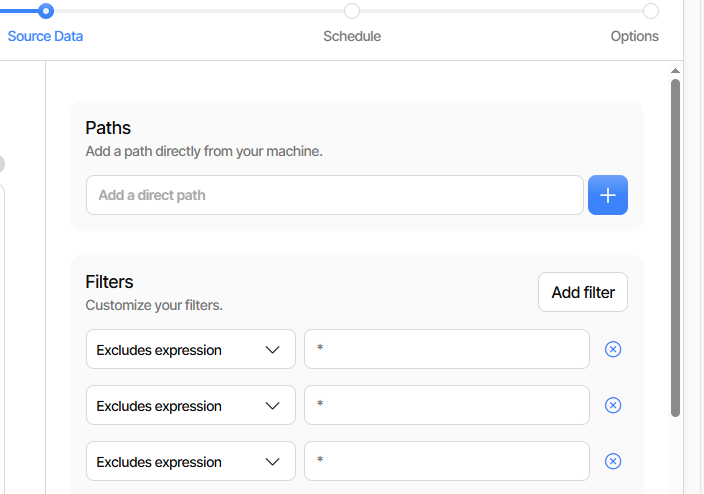
There’s an interaction with Paths. My scroll bar shows up at 2 filters with 3 paths,
however the limit remains 18. UI devs are likely more able to explain interactions.
But for this one, there’s still the old UI.
Are there any similarly named files in the bzrestore folder? If so, do all fail?
What do you make of this old advice from Backblaze support on bzrestore?
At that time, it sounded like most files there weren’t critical. What is the log?
Which files in ProgramData\Backblaze\ can be omitted when making drive images?
gave two answers. One is none. The other is all. I don’t have current advice.
Only those two files? BTW see my setup to exclude hiberfil.sys anyway.
If you have many files that you think should be allowed but aren’t check user.
You can go to About → System info → UserName (maybe also StartedBy).
I use Firefox on Windows 11, and the screen res is 2560x1440. I updated the ticket you opened with the details I hope would be helpful.
I only think it failed that single log file.
I’m not sure to be honest, It’s a long old thread from two years ago. I would go with the harsher saying, that everything is important. On the other hand, I would think that if one needs to restore, they would go with the latter option, to have the restore (inherit backup) download all the required files, in a clean state. That said, I don’t want to babysit Duplicati and add more and more filters, just so I can get a clean backup, without warnings. I want it to be able to backup, whatever I ask.
UserName: NT AUTHORITY\SYSTEM
I would make the same suggestion that Backblaze does – review process early:
Restore Your Data
How to Use the Backblaze Inherit Backup State Option When You Migrate to a New Computer
Problem is that you’re deeper than the web site that I’ve found, so try old Reddit.
“Inherit backup state” is pranking me, I’m going to run out of swap
seems to be saying that the only file type that it downloads are the bz_done files.
Backblaze 9.0 Restore: Nothing But Trouble.
says there’s one log per day (did naming change?) and they’re viewable text files, which possibly explains why you have a bunch. Maybe one of them is active now?
Do you have a Duplicati snapshot-policy option to read locked files? The error sounds more like a permission issue, but SYSTEM should get in, so fish further…
What other things can you think of that might make that log file fail, others work?
Sometimes you can’t get what you want. First, Windows has a permission system where (unlike root on Linux), even SYSTEM needs to explicitly be allowed access. But your file seems to allow that (I’m not an ACL wizard, so any who are can help).
Second is that ACL access won’t get you in if file is locked, but VSS can be added.
Third is that some Windows OS files seem to get special treatment, e.g hiberfil.sys which I can’t copy even as SYSTEM (copy says it’s locked, handle agrees, while several other tools can’t detect it). If I use robocopy with /b, it goes in weird loop:
2025/11/19 11:31:56 ERROR 0 (0x00000000) Copying File C:\hiberfil.sys
The operation completed successfully.
Waiting 30 seconds... Retrying...
            New File              12.7 g        hiberfil.sys
2025/11/19 11:32:26 ERROR 0 (0x00000000) Copying File C:\hiberfil.sys
The operation completed successfully.
Waiting 30 seconds...^C
/B :: copy files in Backup mode.
Since I “think” this is what Duplicati now has in Canary, I’m not sure how it will do.
My advice is to exclude weird Windows OS files and folders, as per my excludes.
Having said that, I don’t know what’s up with single Backblaze log file. Any ideas? Possibly you can also get new opinion from Backblaze support on how critical it is. I’ve cited some files that you do need. Others (e.g. logs) might just help to support.
I found a workaround if you can’t see all filters. After adding a new filter, place the cursor in the last visible filter and press <tab>
Interesting. I’ll check it out, but like you said, it’s just a workaround and also, you having the same issue, makes a stronger case that this is a real issue that exists and not only for me, so thanks for sharing!