Built-in 3-2-1 Backups through Remote Synchronization
A reliable backup strategy has to account for hardware failure, ransomware, cloud outages, and human error. One widely accepted guideline for increasing backup reliability is the 3-2-1 backup rule:
- 3 copies of your data
- 2 different storage types
- 1 off-site copy
By having your data protected in multiple locations, you ensure business continuity even in the face of failures. Failure can emerge from hardware issues, software issues, or ransomware attacks. For example, if an attacker encrypts your machine and the backup destination has a hardware failure or is also encrypted, you will be left without a backup to restore from. By having multiple copies in different locations, you can mitigate the risk of losing access to your data. This is exactly what the 3-2-1 rule aims to alleviate.
Duplicati already supports a wide variety of backends, including cloud storage, local disks, and network shares. However, managing multiple destinations has traditionally required either duplicate backup jobs or external tooling.
With the introduction of the Remote Synchronization Tool and the Remote Synchronization Post-Backup Phase, Duplicati now provides a native, backend-agnostic way to replicate backups between destinations, enabling automated 3-2-1 workflows without having to scan the source data multiple times.
This post introduces both components and explains how they work together to enable a more robust backup architecture.
TL;DR
Duplicati (available in 2.3.0.1 stable) includes a Remote Synchronization Tool and Remote Synchronization Post-Backup Phase to:
- Replicate backups between destinations without re-scanning the source data.
- Enable automated 3-2-1 backup strategies.
- Work with any Duplicati backend (cloud, local, etc.).
The problem
In practice, a high redundancy backup strategy often means more than one backup location:
- A local or nearby destination (for fast restores).
- A remote or cloud destination (for disaster recovery).
- An archival destination with different cost or retention characteristics.
Historically, users could achieve this with Duplicati by:
- Running multiple backup jobs against the same source.
- Chaining scripts after backups.
- Relying on provider-specific replication (when available).
Each approach has drawbacks:
- Multiple jobs increase load on the source data requiring it to be scanned multiple times.
- External scripts are harder to monitor and maintain and they aren’t user friendly to set up.
- Provider-specific replication reduces portability.
What’s missing is a way to say: “This backup already exists; now just make another destination look exactly like it.” Remote synchronization fills that gap.
The Remote Synchronization Tool
The Remote Synchronization Tool is a standalone utility designed to synchronize the contents of one remote backup location to another. Unlike a backup operation, it doesn’t read from the original source data, it doesn’t chunk the data, and it doesn’t perform any compression or encryption. Instead, it operates entirely on existing remote backup data, treating one backup location as the authoritative source and another as a replica. In other words, it’s like having a master copy of your files that gets replicated to different locations.
It can be used as a standalone tool for manual or scripted synchronization, leveraging the same backend implementations as Duplicati for maximum compatibility. The contents of the files being synchronized are opaque to the tool, which only sees them as files with metadata, making it compatible with not only Duplicati backups but also any other data stored in supported backends.
What It Does
The tool performs a full comparison between two remote backup locations (referred to as “source” and “destination”) and takes actions to make the destination match the source. Specifically (in order):
- Lists all files in both source and destination backup locations.
- Compares file metadata (size, timestamp, etc.) to determine differences.
- Optionally verifies destination file contents for pre-existing files against source file contents for integrity.
- Deletes files from the destination that are no longer present in the source (with optional retention behavior that renames rather than deletes). This is performed before copying to free up space.
- Copies new or changed files from source to destination (optionally forcefully). A copy consists of downloading the file from the source and uploading it to the destination.
The intent is deterministic convergence: after a successful run, the destination represents the same backup state as the source.
This makes the tool suitable for:
- Off-site replication.
- Cloud mirroring.
- Migration between providers.
- Creating cold-storage copies of backups.
This means you can maintain consistent backups across multiple locations without the complexity of managing separate backup jobs.
Options
The tool supports a variety of options to control its behavior, grouped into categories for clarity:
General Options
--dry-runShow what would be done without making changes. Read operations are still performed to determine differences, but no write operations are executed (default:false).--confirm,--yes-ySkip confirmation prompts for destructive operations (default:false).--progressPrint progress during synchronization (default:false).--parse-arguments-onlyOnly parse arguments without executing synchronization (default:false).
Synchronization Options
--auto-create-foldersAutomatically create missing folders in the destination (default:true).--forceForce copying of files even if metadata matches (default:false).--retentionRetention mode where deletions are renamed instead of removed (default:false).
Backend Options
--backend-retries NNumber of retries for backend operations (default:3).--backend-retry-delay MSDelay between backend retries in milliseconds (default:1000).--backend-retry-with-exponential-backoffEnable exponential backoff for retries (default:true).--retry NNumber of retries for failed operations (default:3).--src-optionsAdditional options to pass to the source backend (format:key1=value1 key2=value2 ...).--dst-optionsAdditional options to pass to the destination backend (format:key1=value1 key2=value2 ...).--global-optionsAdditional options to pass to both backends (format:key1=value1 key2=value2 ...).
Logging Options
--log-file PATHPath to log file (default: none, logs to console).--log-level LEVELLogging level (Duplicati log levels:ExplicitOnly,Profiling,Verbose,Retry,Information,DryRun,Warning,Error; default:Information).
Verification Options
--verify-contentsVerify file contents by downloading matching pre-existing files and hashing before copying. It can be used as a safety check for whether files on the destination have changed or become corrupted (based on the hash of the source file) (default:false).--verify-get-after-putVerify destination file contents by re-downloading and hashing after copying (default:false).
Example Usage
We’ve created two example scripts that demonstrate the functionality on local drives (for reproducibility). They’re available as example_rsync.ps1 for Windows (PowerShell) and example_rsync.sh for Mac/Linux (bash). To run them, provide the mode as the first argument: [tool|auto]. Use tool to test the Remote Synchronization Tool, and auto to test the Remote Synchronization Post-Backup Phase (described in the next section). For example:
- On Windows:
.\example_rsync.ps1 tool - On Mac/Linux:
./example_rsync.sh tool(ensure the script is executable withchmod +x example_rsync.sh)
The scripts perform the following steps in tool mode:
- Creates some test files in a source directory.
- Runs a backup job to create a backup in a source backup location.
- Performs a restore to a temporary location to verify the backup.
- Uses the Remote Synchronization Tool to replicate the backup to a destination backup location.
- Verifies the destination backup by performing another restore from the synchronized backup.
- Verifies that the two backup folders are identical and that the two restored folders are identical to the original source data.
From Manual to Automatic: The Remote Synchronization Post-Backup Phase
While the Remote Synchronization Tool can be invoked manually or as part of a script, we’ve added a post-backup phase to integrate it directly into Duplicati’s backup process. This post-backup phase allows users to define remote synchronization policies that automatically trigger after successful backups, without needing to manage separate scripts or processes.
Key Integration Benefits
This has several important implications:
- Synchronization only runs when backup data is known to be in a consistent state, reducing the risk of propagating incomplete or corrupted backups. This can be relaxed a bit with the
sync-on-warningsoption, which allows synchronization to proceed even if the backup finishes with warnings. - Failures in synchronization do not affect the integrity of the backup itself as the remote synchronization process is decoupled from the backup operation.
- The same synchronization logic found in the tool is reused by the post-backup phase, ensuring consistency across both manual and automatic synchronization scenarios.
In effect, the post-backup phase turns remote synchronization into a backup policy, rather than a separate process. While we could have implemented this in the core backup logic, e.g. by broadcasting uploads to multiple destinations during backup, we chose to keep it separate so:
- We make sure that it doesn’t trigger on failed or incomplete backups. It’ll only ever happen with a consistent, stable-state backup.
- Any issues regarding secondary backup destinations won’t affect the primary backup operation. If a synchronization fails, the backup is still valid and can be restored from, and the failure is logged for later review.
Configuring Remote Synchronization
Remote synchronization is configured using a JSON configuration. At minimum, the configuration must define a destinations array. Each destination corresponds to one replication target and maps directly to the options supported by the Remote Synchronization Tool.
Example:
{
  "sync-on-warnings": true,
  "destinations": [
    {
      "url": "file:///path/to/offsite/backup",
      "mode": "inline",
      "auto-create-folders": true,
      "backend-retries": 3,
      "verify-contents": true
    },
    {
      "url": "s3://bucket/backup",
      "mode": "scheduled",
      "schedule": "7.00:00:00",
      "dst-options": ["key1=value1"]
    }
  ]
}
Each destination can be configured with the same options as the Remote Synchronization Tool, along with additional properties to control when synchronization happens (mode and schedule, both of which are explained in the next section).
This structure allows:
- Per-destination behavior.
- Independent retry and verification policies.
- Different schedules for different storage tiers.
Through the command-line interface, users can either provide the JSON string or a path to a file containing the configuration. The UI handles the JSON configuration automatically as described in the Configuring Automatic Remote Synchronization section.
CLI Examples
The remote synchronization post-backup phase can be configured via CLI using the --remote-sync-config option in the backup command.
Example using inline JSON (on Mac/Linux, use single quotes to avoid escaping):
duplicati-cli backup "file:///source" "file:///primary/backup" --remote-sync-config '{"sync-on-warnings": true, "destinations": [{"url": "file:///offsite/backup", "mode": "inline", "auto-create-folders": true}]}'
Example using a config file:
duplicati-cli backup "file:///source" "file:///primary/backup" --remote-sync-config /path/to/sync-config.json
Trigger Modes: When Synchronization Happens
Each destination defines when synchronization should be triggered. Three modes are supported:
Inline mode
Synchronizes after every successful backup.
This is the simplest and most predictable option, suitable for:
- Local mirrors.
- Near-real-time off-site replication.
- Destinations with low latency or high bandwidth.
Scheduled mode
Synchronizes on the first successful backup, then repeats on a fixed schedule.
Important characteristics:
- The schedule is relative to successful backups since the last synchronization.
- If no backups succeed, no synchronization occurs. The following successful backup will trigger synchronization and reset the schedule.
- Missed schedules are not “made up” later; the schedule simply waits for the next successful backup to trigger synchronization and reset the schedule.
This makes scheduled mode useful for:
- Weekly cloud replication.
- Cost-controlled storage.
- Environments with limited bandwidth.
Counting mode
Synchronizes after every N successful backups.
This mode is independent of wall-clock time and instead tied to backup frequency, making it useful when:
- Backup intervals vary.
- You want predictable batching behavior.
Handling Failures, Warnings, and Edge Cases
The phase is careful about when not to synchronize.
Remote synchronization is skipped when:
- The backup fails.
- The backup finishes with errors.
- The backup finishes with warnings and the
sync-on-warningsoption is disabled.
Each destination is evaluated independently, meaning:
- One failing destination does not block others.
- Failures are logged with destination-specific context.
This behavior ensures that remote synchronization enhances reliability.
Additional edge cases and failure handling:
- Network interruptions: If a network failure occurs during file transfer, the operation retries up to the configured limit with exponential backoff. Partially transferred files are picked up on subsequent runs.
- Destination storage full: Synchronization fails if the destination lacks sufficient space. The error is logged, and no partial state is left.
- Authentication failures: Invalid credentials for source or destination backends cause immediate failure for that destination, without affecting others.
- Corrupted files: With
--verify-contentsenabled, mismatches trigger re-download and re-upload. Persistent corruption may lead to repeated failures. - Concurrent modifications: If the source is modified during sync, the tool may detect inconsistencies. Use
--forceto overwrite, but this risks data loss. - Partial sync recovery: Failed syncs leave the destination in an inconsistent state. Re-running the tool will resume from the last consistent point, copying missing or changed files.
Configuring Automatic Remote Synchronization
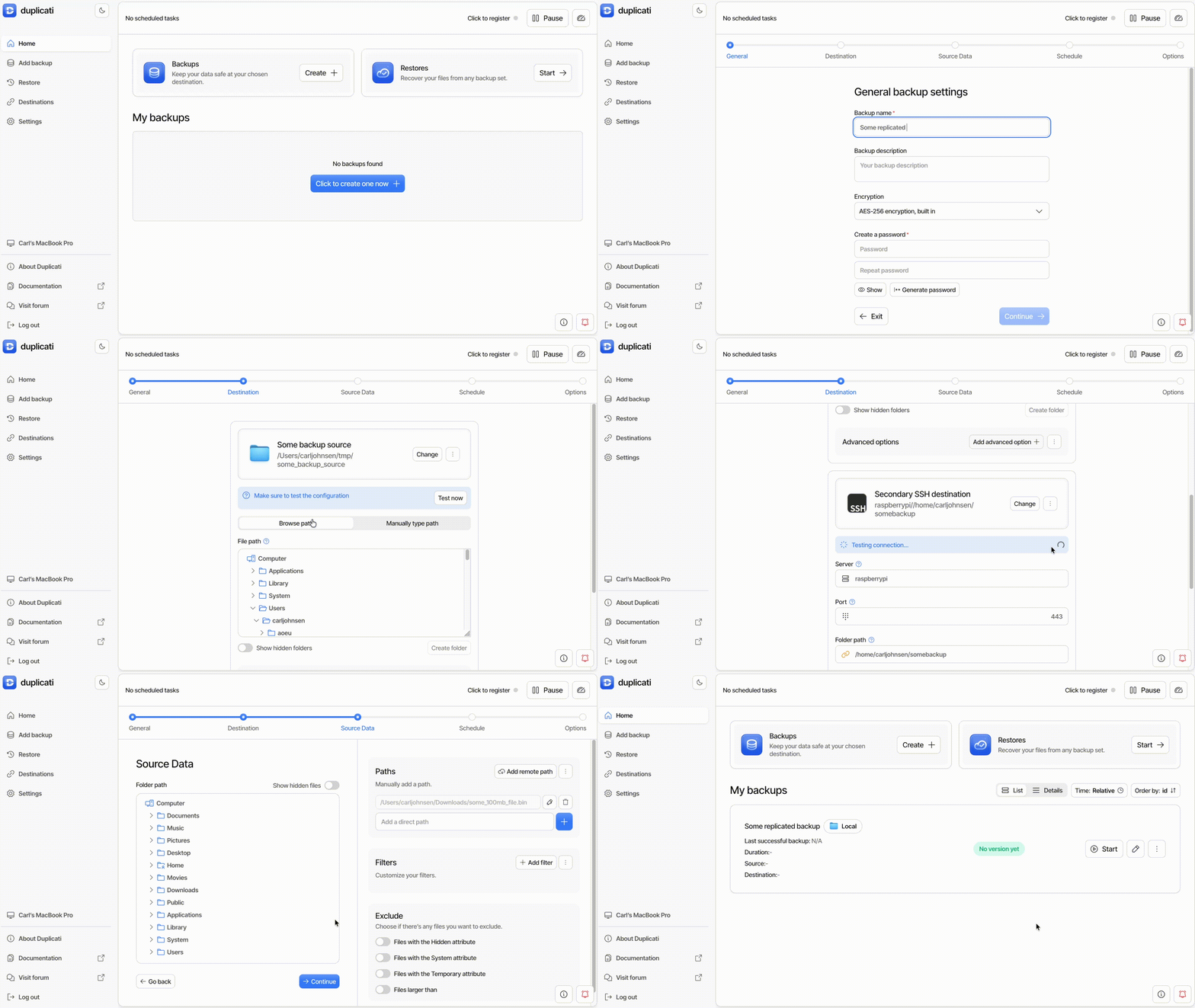
In addition to JSON and CLI configuration, remote synchronization can also be configured through the Duplicati UI, which produces the underlying JSON configuration automatically.
Let’s walk through creating the same setup as with the remote synchronization example. First, we create a backup job that saves to a local folder and has an SSH server as secondary destination.
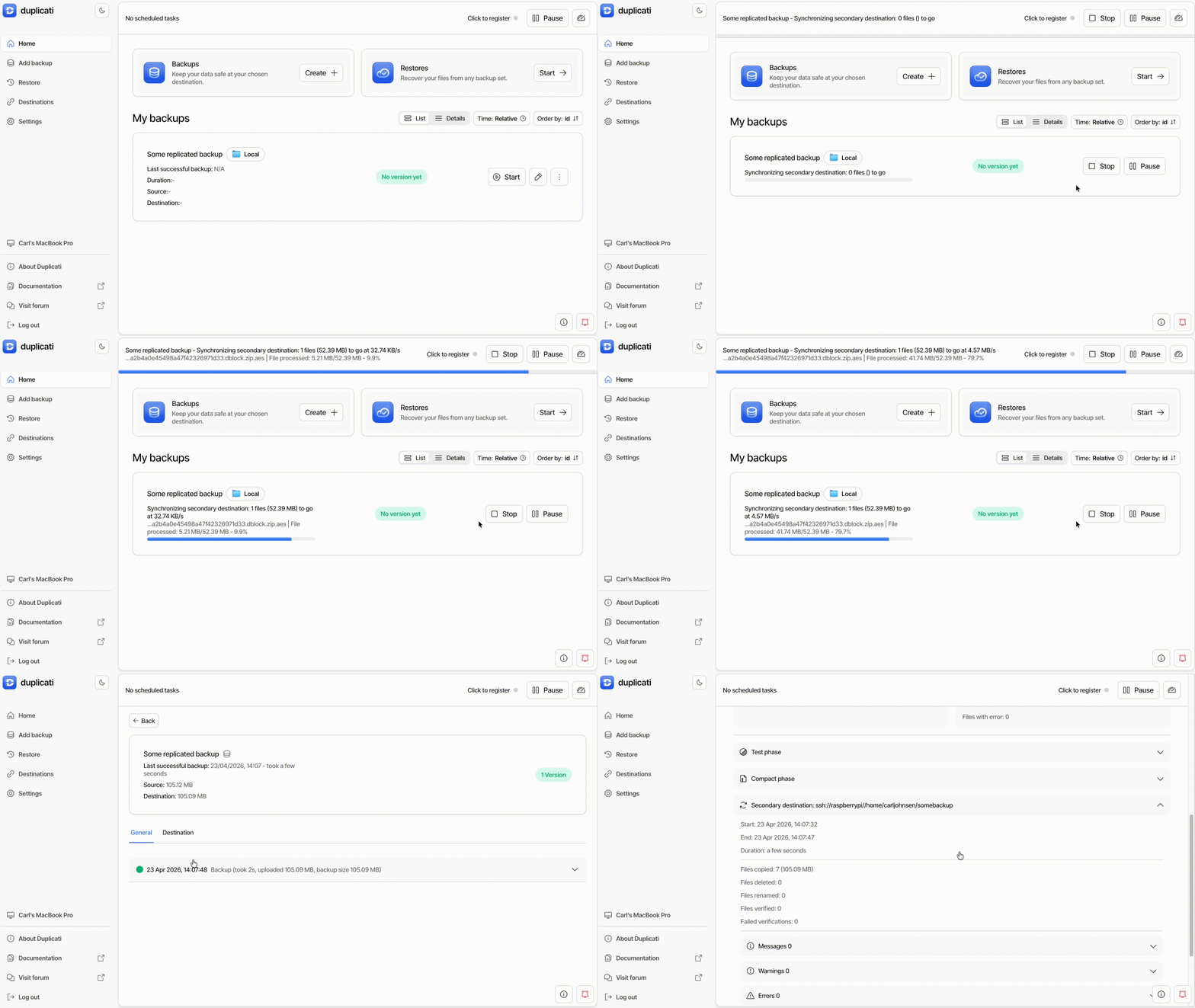
Then we can run our backup job and see that the UI also reports the status of the remote synchronization phase:
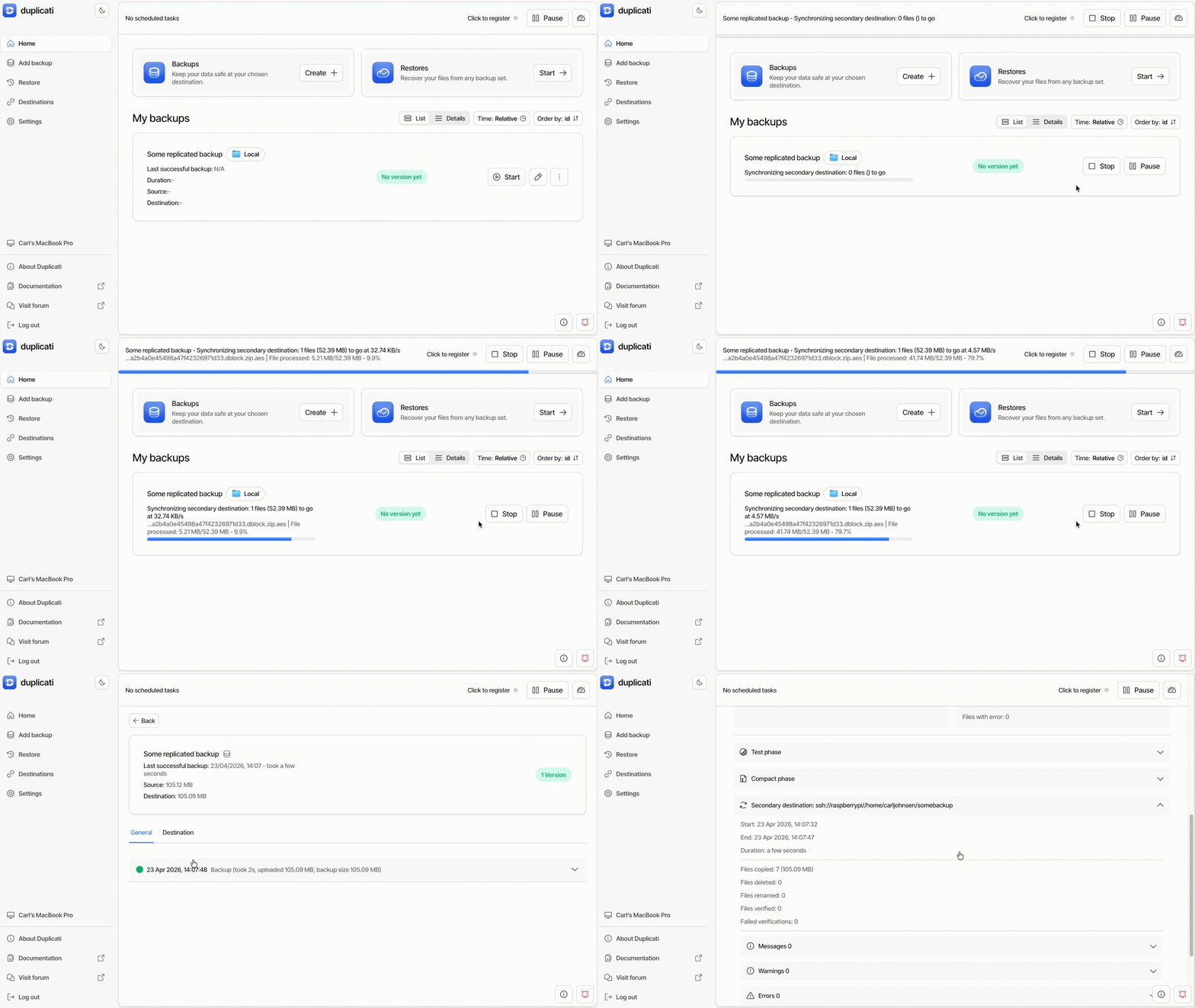
Finally, we can restore from the secondary destination to verify that the backup was successfully replicated:
This process can also be performed using the CLI with the auto mode of the example scripts example_rsync.ps1 and example_rsync.sh, which performs similar steps as the UI walkthrough conveniently as a CLI script: .\example_rsync.ps1 auto on Windows or ./example_rsync.sh auto on Mac/Linux.
Performance Considerations and Future Optimizations
The Remote Synchronization Tool is designed to be decoupled, simple, and lightweight. However, this approach may not be the most performant for all scenarios due to the following limitations:
- Each file is copied individually, which can lead to overhead for large numbers of small files.
- It doesn’t use advanced synchronization algorithms (e.g., block-level delta transfers) that some specialized tools might support.
- Verification options can add additional overhead, especially for large files.
- It runs single-threaded by default, which can limit throughput on high-bandwidth connections.
- To ensure consistency, each destination is synchronized independently, which can lead to longer total synchronization times, as the primary remote destination has to be read multiple times (once per missing file per secondary destination).
Potential Future Optimizations
From the above limitations, we can identify the following potential optimizations:
- Overlapped file transfers: Download, verify, and upload files concurrently to better utilize network and CPU resources while keeping memory and disk footprint low.
- Download once, copy many: Compile a collective plan for missing files across all destinations. Use this plan to copy each downloaded file to all required destinations, reducing reads from the primary remote destination and improving performance for multiple secondary destinations.
- Parallelization: Synchronize multiple files concurrently for better resource utilization, though this increases complexity and adds potential issues with rate limits and resource contention (e.g., disk and memory).
- Caching new volumes: Cache new volumes locally during the backup phase and use them for synchronization instead of downloading from the primary remote destination. This eliminates reads for new files, though scheduled synchronization might still require some reads.
Summary
The Remote Synchronization Tool and Remote Synchronization Post-Backup Phase together provide:
- Backend-agnostic replication of backups.
- Automated, policy-driven synchronization.
- Flexible trigger strategies.
- First-class support for automated 3-2-1 backup setups.
They’re part of Duplicati since 2.3.0.1 stable and can be used immediately to enhance your backup strategy.
This means you can now implement robust, multi-location backup strategies with minimal effort and maximum reliability.