Hi, is there anyway to restore only the differences/delta between both versions of a backup?
I kinda need to just see what exactly changed and pull those out quickly rather than having to restore both versions fully and then using a third party dedupe program for this
No couple-of-buttons way. This has three parts, one easy, one hard, one custom.
The COMPARE command can show what files got added, deleted, or modified.
This is a little better than file statistics in job log, but doesn’t detail file changes.
Anything trying to do that would probably have to work based on the file format.
Historically, Duplicati didn’t pay attention to file type, except for its compression.
Duplicati, Inc. seems to be launching an effort that sounds more content aware.
Maybe we’ll hear more details someday. It also sounds a bit enterprise-oriented.
I don’t think there’s any integration of Compare and Restore, but here are ideas:
Above was Windows. If you’re on Linux (or such), your scripting tools are better.
This is almost (or maybe) the kind of project that xargs could help to automate.
I’m not sure if your dedupe program would show format-sensitive differences.
If you don’t need that level of “exact”, then that’s less that you need to create.
Another less-than-full approach might be to restore one version then use this:
while restoring the second version on top of the first in the same restore area.
You can then run some sort of search or find for timestamps to run compares.
Both versions would be next to each other. It’s still a question of scale though.
Finding timestamps might be quickest with Everything if this is on Windows.
You can also see restored file names in a log-file or shown on the console.
Thanks, I did try COMPARE command, got an output that is too large to be viewed as it considered any file that just has its drive changed (e.g. A:/Photos to F:/Photos) to be a deleted and then added file at the same time. You can imagine how quickly this compounds and how this makes finding those that are truly changed hard without third party tools
As for that script, let me check out the linked thread and see if this is relevant
Thanks, the tool is Duplicate File Cleaner, it would hash the files to be checked with Blake2b-256 algo before showing me which files have same/similar hash and therefore are duplicates
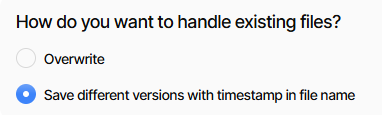
The idea of restoring over each other is a good idea actually. May I know how restoring exactly works when it comes to duplicates? Does it take longer than restoring to an empty directory due to the need (or lack thereof) to check for duplicates? Can I specify how it check for duplicates? (e.g. via hash rather than just exact filenames and directory etc)
(yes I am familiar with Everything in Windows, it is a lifesaver to say the least!)
If a drive change isn’t a change, what about a folder change or a rename?
Originally I thought this was files changed-in-place, but apparently it’s not.
Duplicati already knows the hashes of all the files, and also the file paths.
Another approach would be to use a script and SQL to look over the data.
The question I posed above holds – what’s a “difference” and what’s not?
If the focus is only about duplicates, that’s an even easier analysis in SQL.
OTOH it sounds like you already got a tool that works with current content.
I don’t understand the question well, especially with the questions after that.
I think Duplicati does file restores separately. It won’t restore one then copy.
Restore just got rewritten though, and there are other optimizations coming.
Restore time will vary because restore won’t restore a file it doesn’t have to.
No restore - The target directory contains all of the files in their expected state. Metadata is skipped, so this test should not be fetching from remote storage.
for the new flow design, and for the old flow which I have more experience with:
Scan the existing target files for existing blocks, as they don’t need to be restored.
This always confused people when no work was needed, so they were told:
Restore completed without errors but no files were restored
For the context of this thread, I am looking for files that are only different in their SHA-256 hash aka for two snapshots, if the same file is just in different folder for each snapshot (e.g. Snapshot 1 in photo folder, Snapshot 2 in Desktop), it will not count as a different file to me but to Duplicati it does