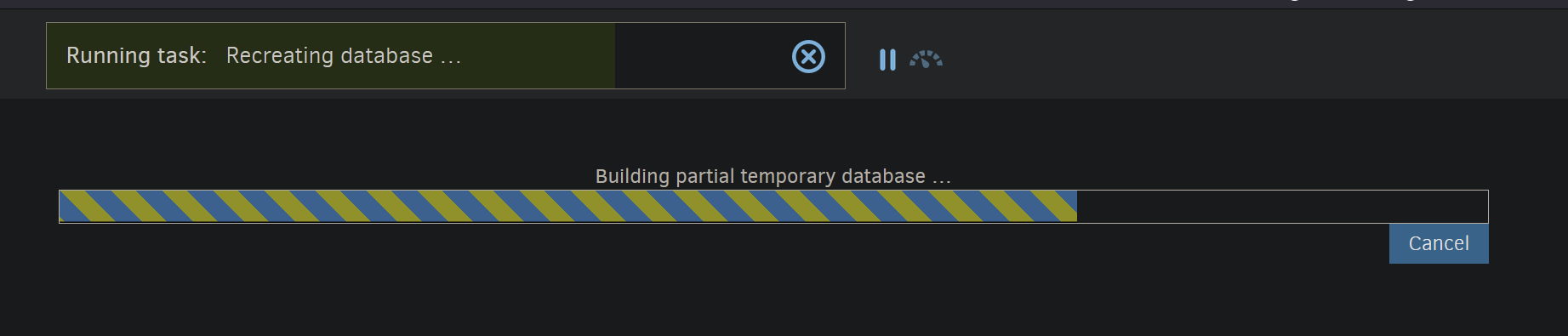
I cancelled this task before and was able to skip to the next part and restore majority of my files, but I now realize that not everything was restored. Many of my folders are missing a handful of files.
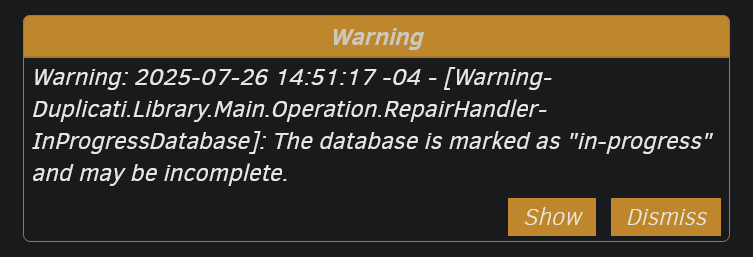
I remember before I wiped my machine, I was getting a warning about “sha2 is different. Make sure…” something of this nature. It wasn’t an error so I didn’t worry about it too much. Now it looks like I might not be able to get some files back.
Any help please?
EDIT: Just left this over night for 6+ hours and its still hasn’t progressed past this
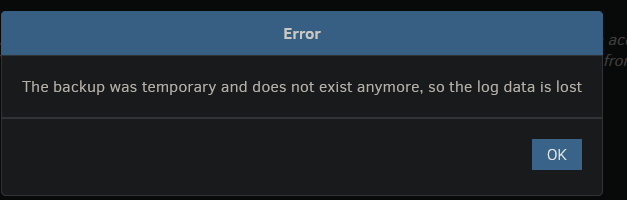
EDIT 2: I cancelled the task so it would move to the next step, and I get this error:
EDIT 3: looks like leaving it overnight and skipping to the next task did restore more of my missing files, but I honestly cant be sure if everything was restored
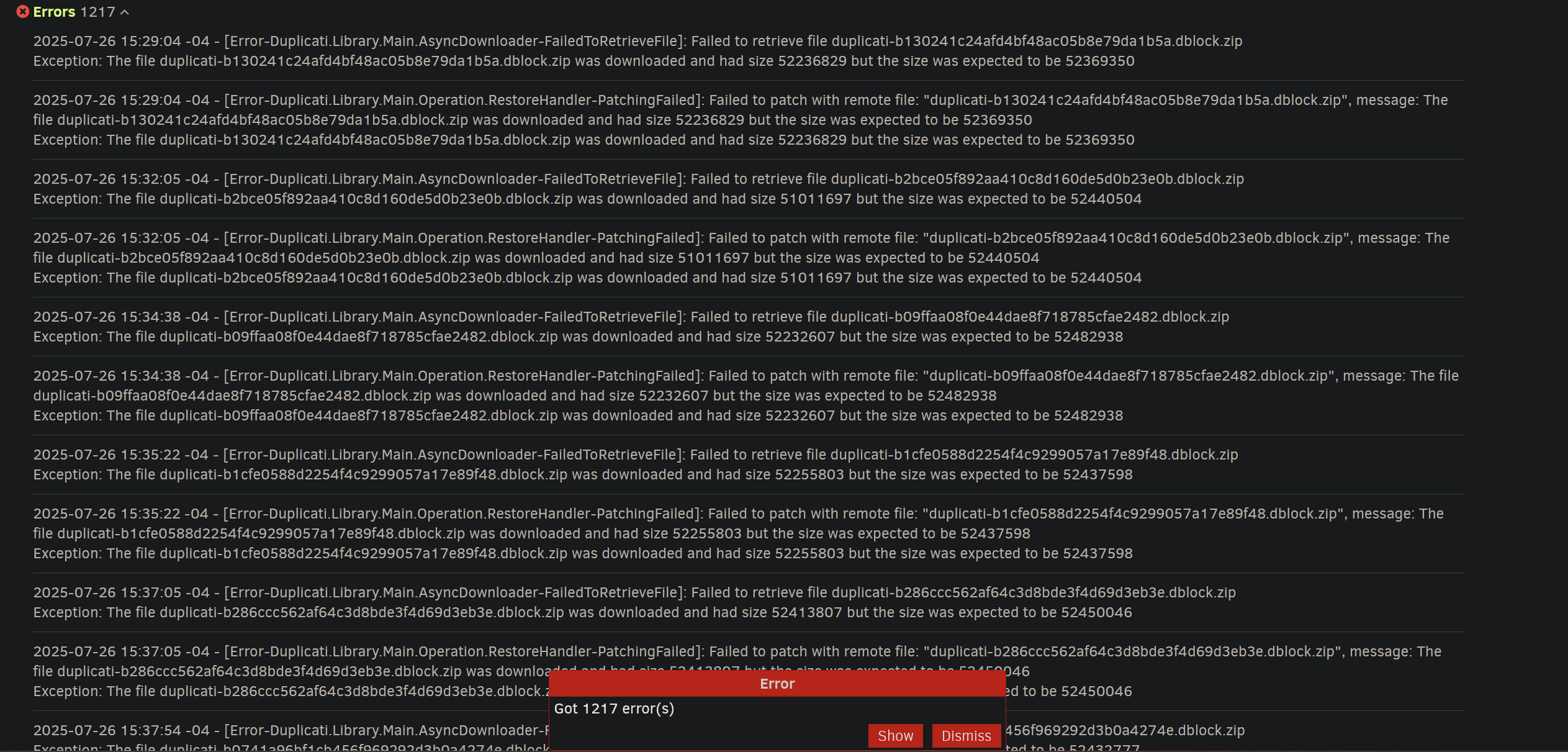
EDIT 4: I let it finish the restore and “verify restored files” and I got the same sha2 errors from before my Windows clean install:
This might need expert help, but the main dev seems to be around more weekdays.
Meanwhile maybe I can get started.
So this is a second try, with the first looking similar but then a Cancel + skip?
How big is the backup? Check Duplicati activity in Task Manager process list.
Sometimes About → Show log → Live → Profiling can also see some activity.
Starting at resource use is better because sometimes big-backup SQL is slow.
It looks like you doing a “Direct restore from backup files”. What is backup on?
Check About → Show log → Stored for any errors and warnings from restore.
Unfortunately you probably have no job there, so no job log to be looking into.
On the other hand, the only message I can think of like that is from when there’s a job.
Logging.Log.WriteWarningMessage(LOGTAG, "MissingRemoteHash", null, "remote file {1} is listed as {0} with size {2} but should be {3}, please verify the sha256 hash \"{4}\"", i.Item2.State, i.Item2.Name, i.Item1, i.Item2.Size, i.Item2.Hash);
There are SHA-256 hash uses all over the place for checking. Maybe it’s some other?
What was your plan to get a job set up again after the clean install? Maybe time for it?
You can then recreate the database from destination while running some extra logging.
Maybe advanced options log-file=<path> log-file-log-level=verbose for a start?
More detailed levels such as profiling are available, but the files produced get huge.
I didn’t say that, but I did veer into a separate question. Look for activity, e.g. CPU and Disk. Goal is to distinguish between stuck doing nothing (somehow) and stuck being hugely busy.
280 GB is not bad. A little large if first done on a Duplicati a few years old. Fine if on recent.
So it might be harder (but maybe not impossible) to say access broke (as network can do).
What is this reference to “sha2 errors”? Are they in the EDIT 4 image somewhere?
What I can see is some files that somehow got smaller. Were they always on USB?
You show dblock files. They default to 50 MB and keep the actual data from source.
For restore, this data gets pulled out and put back into the right spots in restore files.
That only works if dblock can be opened. Yours are just .zip files. Can they open?
Basically, just try to open some in Explorer, and don’t worry about the content inside.
The 280 GB backup size might call for 5600 dblock files, but errors shown were less.
This is consistent with having gotten something back. One peril is that a file can look restored by file name being there, but actually partly there, since it’s rebuilt by blocks.
Blocksize defaults to 100 KB in older Duplicati and 1 MB in newer ones to add speed.
There should be a sweep of all files restored at the end of restore, and it should make messages about errors if some part is missing, since the hash of the file will be wrong.
is what you might have seen at end of restore, but it’s not specifically saying sha2 in that.
Duplicati keeps a SHA-256 hash of what each source file should be. That’s what it checks.
To improve speed for database recreate for a job or for Direct restore, each dblock file has a dindex file that says what’s in it – and also what the dblock file is supposed to look like, e.g.
So that’s how Duplicati can fret over a dblock file that’s the wrong size (yours) or corrupted.
Genuinely corrupted dblock files are bad news, as that’s where the source file data is kept. Suggest you try to open some with a ZIP tool. One with a test function, e.g. 7-Zip is better, however even Windows Explorer will probably say something if it sees the file is damaged.
There are some other ways to approach this, but let’s start with some simpler things first…
Oh, ok. Yes I was checking resource usage in Task Manager and at times it would hit around 100/200MB write so it looked like it would be doing something, but eventually it would slow back down. This continuously kept happening. Random spikes that looked like it was doing something
It was around 5 backups of 300-400GB source files so it was pretty good compression honestly. I have restored this same way through multiple Windows clean installs before.
The backup is on a locally installed HDD
hmm I guess i misread. I thought that this recent log was showing the sha2 error. I think I was mistaken and this “dblock smaller” was the error I was getting pre-clean install
Yes my backup was always on my local 2TB HDD
Yes they seem to open just fine. Selecting random zips and none of them seem to have issues. Mind you there’s like 11k of them.
I cant seem to pull the logs anymore unless if I redo the restore:
I meant check a few that Duplicati errored on, e.g. on your image.
If that log is no longer around, that’s one reason to go to a log-file.
You just need to do what I wrote: Make a job, set up the log-file.
On Database screen, run Repair. Check the log. Defer doing more.
That might give the names of any files that have the “wrong” length.
If not, there are probably ways to ask that, e.g. the test command.
We need to find out if you have indeed gotten corrupted dblock files.
Possibly you will also see a pattern (timestamp?) after finding some.
The error messages here say that the remote files (the ones stored on the 2TB HDD) have incorrect lengths. The size differences look quite strange. The first entry is around 130kb to short, and the next file is more than 1mb short. (Note that each defective file is listed twice in the log).
Have you tried specifically to open the file duplicati-b130241c24afd4bf48ac05b8e79da1 b5a.dblock.zip and verify that it is indeed not damaged? Can you try to manually copy the file from the 2TB HDD to another disk and check what size the resulting file has?
If you can verify that the files are not damaged (or don’t care) then you can --skip-file-hash-checks which will avoid the check to see if the files are actually correct, and just use them “as-is”. Note that this may cause other errors to appear if the files are indeed defective.
It should not take that long, but we have discovered an issue that causes incorrect index files to be created during some operations. When this happens, the database recreate takes significantly longer. It essentially grabs the dblock files at random and scans them to find the information that is needed. This means it needs to process the entire 280GB before the database is recovered.
(side note: We have a fix for this, but it does not help you, because the database is already toast so the index files cannot be recreated without scanning all the block files.)
What I would suggest is that you import the configuration, and disable the scheduled run, so it does not try to make new backups. Then you go to database and try the “repair” command there. You will still see a slow process unfortunately, and the usage spikes you see are most likely related to the different phases (reading the zip file and updating the database).
Leave it for however long it takes, and you should now have a working local database. From this you can restore files.
A different approach is to use the recovery tool. It does not build the database, but a much simpler index file. The recovery tool is built to be forgiving of errors, so it will restore as much of the data as possible, even leaving files partially restored if some data is missing.
If the database recreate does not complete, you will most likely not have all data, as some information is missing.
do you mean disable-length-verification? It is the only similar option I can see under Backup Location > Advanced Optionswhen restoring from direct backup
Assuming you did search for the text, you should have matched it as the prefix I gave was at least correct. If so, then it is highly odd that Duplicati can download the file (with a wrong length) AND the file does not exist when browsing for it.
No, that switch is only for the backend. It just avoids checking if the uploaded file has the correct length after the upload. The --skip-file-hash-checks option is a general advanced option.
It is a bit counter-intuitive, but in step (2), you enter it in the advanced options:
What sort of restore? It looks like you’re doing a “Direct restore from backup files”.
Option setting is less user-friendly there, but I guess you did it. More options later.
As discussed before, is it stuck or hugely busy? Check resource usage, set up a log.
Task Manager Performance tab gives a good resource overview without much detail.
From there you can open Resource Monitor if you want a little better use breakdown.
Since you might not want to kill it now, you can log using About → Show log → Live.
If it’s using resources, Profiling level is sensitive but lengthy. Especially nice for SQL.
Information might suffice if it’s getting stuck on a file read. If so, there are other tools.
What file system is the drive using? You can see it by right-clicking to see Properties.
Resource Monitor CPU tab also has a “Search handles” to see what’s open on drive.
For example, if I have a USB drive on E:, I can search E:\ to look for its open files.