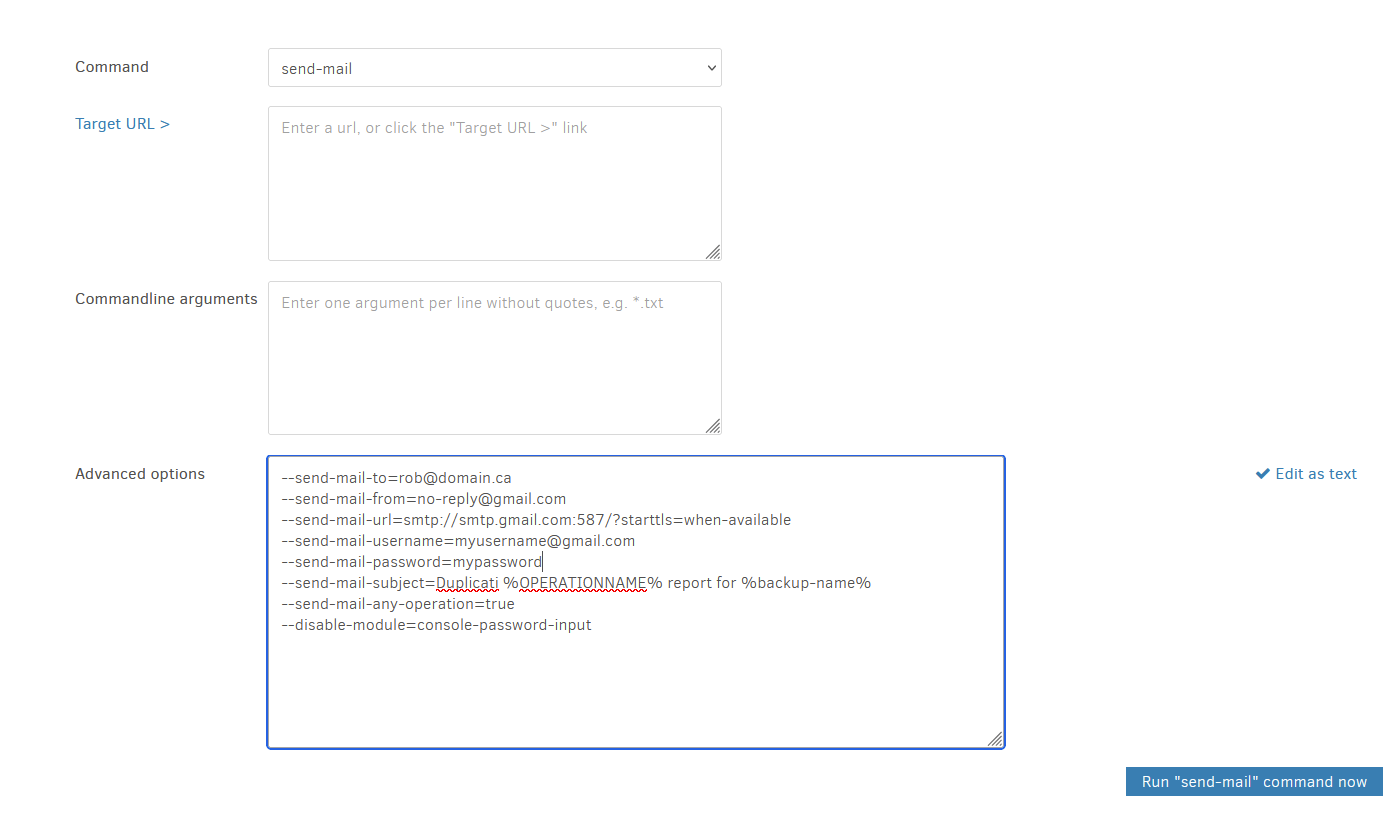
I have an issue with Duplicati sending backup complete emails on Windows 11. After the backup completes I do not receive an email stating that.
I can however send a test email via command line just fine, using the same parameters i use in the GUI i receive the email but nothing after the backup completes.
I am using version Duplicati 2.1.0.5_stable_2025-03-04
My parameters below when testing from command line
Duplicati.CommandLine.exe send-mail --send-mail-to=rob@domain.ca --send-mail-from=DuplicatiBackup@gmail.com --send-mail-url=smtp://smtp.gmail.com:587/?starttls=when-available --send-mail-username=myusername@gmail.com --send-mail-password=mypasword --send-mail-subject=“Duplicati Test” --send-mail-body=“This is a Duplicati test email.” --verbose --log-level=profiling
I get the following in the logs from the GUI. However user and password are correct.
Any suggestions?
MailKit.Security.AuthenticationException: 535: 5.7.8 Username and Password not accepted. For more information, go to 5.7.8 Can't sign in to your Google Account - Google Account Help d75a77b69052e-4b30edd2079sm9216861cf.44 - gsmtp —> MailKit.Net.Smtp.SmtpCommandException: 5.7.8 Username and Password not accepted. For more information, go to 5.7.8 Can't sign in to your Google Account - Google Account Help d75a77b69052e-4b30edd2079sm9216861cf.44 - gsmtp — End of inner exception stack trace — at Duplicati.Library.Modules.Builtin.SendMail.SendMessage(String subject, String body) at Duplicati.Library.Modules.Builtin.ReportHelper.OnFinish(Object result, Exception exception)
Hey ts678, there are no double quotes any to be found. When I click on show logs, i do not see anything related to email in any logs file. What should i do next?
The details (including a full email transcript with the server) are at profiling log level.
has the idea, but as noted it’s deprecated (this should be visible in the GUI, if you set it).
log-file-log-level=profiling and log-file=<path> is the current log file scheme,
or you can watch live at About → Show log → Live → Profiling, but it can be lots of lines.
Suggestion was:
Click that link for directions.
If you go this route, you can instead use console-log-level=profiling for logs.
Either way, I “think” the credentials aren’t logged, and they’re what’s complaining…
(P.S. Duplicati log gets the SMTP Authentication. Some AUTH types are revealing).
You could also read the Google link in your error, but the mystery is why some ways succeed and some fail. That’s why you’re trying to test by use of GUI Commandline.
If you want to go the other way (at more risk), you can run GUI backup either in GUI Commandline without any changes (should be safe), or Export As Command-line to experiment in Windows Command Prompt running as the same usual Duplicati user.
So here is what i did, and i get same bad password response. But still in CMD window in Windows it works fine from within the Duplicati 2 directory.
I do not have to much time to deal with this at the moment, my apologies, if what i post does not help much. I will get back to this issue in a couple days.
Result still:
S: 535-5.7.8 Username and Password not accepted. For more information, go to
That’s half the answer to the question I asked. Any other adjustments made for a CLI?
They are usually only needed for special characters that aren’t digits or English letters.
If your password is anything besides 16 digits or 16 English letters, that’s another clue.
Google has been pushing users to 2-step verification, and so SMTP to app passwords.
This still doesn’t explain why CLI works and GUI doesn’t, but my first note above might.
I was also concerned about using non-gmail destination, but I tested that and it worked.
Test was on 2.1.0.5, and as close as I could get to the screenshot data that you posted.
I had About → Show log → Live → Profiling in case it broke, but it went to recipient fine. Comment thinking credentials aren’t there looks wrong. If you see an AUTH PLAIN, the Base64 encoded data there seems to have them, so don’t post AUTH data to the forum.
Another test mentioned above is Export As Command-line to Command Prompt backup, where Duplicati is responsible for the prep. I’m not sure if PowerShell prep is the same…
No problem. Maybe someone else like a dev will have some ideas based on info so far.
I tried exporting as command line, and running that in a cmd window I have the same issue/result.
My Password is a simple regular character password as a test, nothing funky.
Just a note i noticed, when i run the below command as a test for sending email after a backup in a Windows 11 cmd window by itself, I receive an email just fine:
Duplicati.CommandLine.exe send-mail --send-mail-to=rob@domain.ca --send-mail-from=DuplicatiBackup@gmail.com --send-mail-url=smtp://smtp.gmail.com:587/?starttls=when-available --send-mail-username=myusername@gmail.com --send-mail-password=mypassword --send-mail-subject=“Duplicati Test” --send-mail-body=“This is a Duplicati test email.” --verbose --log-level=profiling
When I run the below in Windows cmd window, I do NOT receive an email, but the backup works fine, I got this command line from the export command option:
Your posted double quotes were not what they should be, even viewed as original source before forum helpfully (not in this case) changed them to use fancier style per Quotation marks in English in Wikipedia. You posted these but don’t want this:
What you want is the computer double quote key, probably next to your Enter key.
I’m unsure how you got special double quotes, but command line needs above style.
Sometimes it needs it badly, for example if there are spaces in a single option value.
Forum special quotes can be disabled using backtick (`) before and after typed data.
For example "computer-quotes" stay, and it can also help --double dash.
Without this, I don’t know what quotes you actually had, but some appear wrong type.
If you typed the export into a word processor, it might also have changed quoting type.
Although this is still confusing, I’m glad you found a solution, but test computer quotes. Sometimes you’ll need those to keep a phrase with spaces intact in Command Prompt.