I use 2.3.0.1_stable_2026-04-24 on an Ubuntu 22.04 machine.
It runs automatic backups to a B2 Cloud storage once a day.
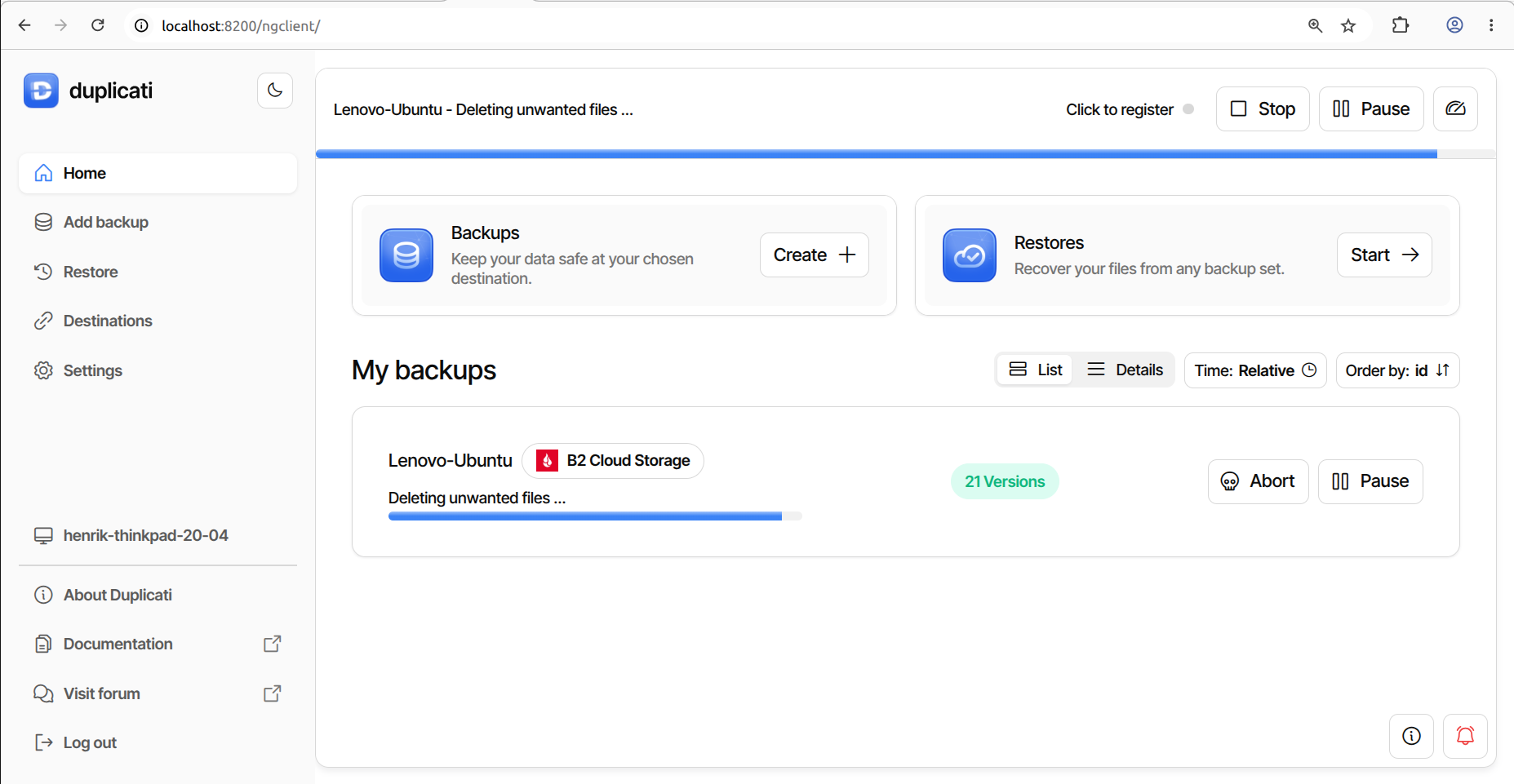
In order to see any possible warnings (that don’t seem to pop up in the new UI) I ran a manual backup. But it got stuck on “Deleting unwanted files”. What do I do now?
ChatGPT suggests running a “Repair”, but that - and many other options - seem to be missing in the new UI?!
I’m not sure Repair is what you want. Neither ChatGPT nor I got much info.
Is Duplicati consuming significant CPU or other resource that you can find?
“Deleting unwanted files” can also involve Compact, which can take awhile.
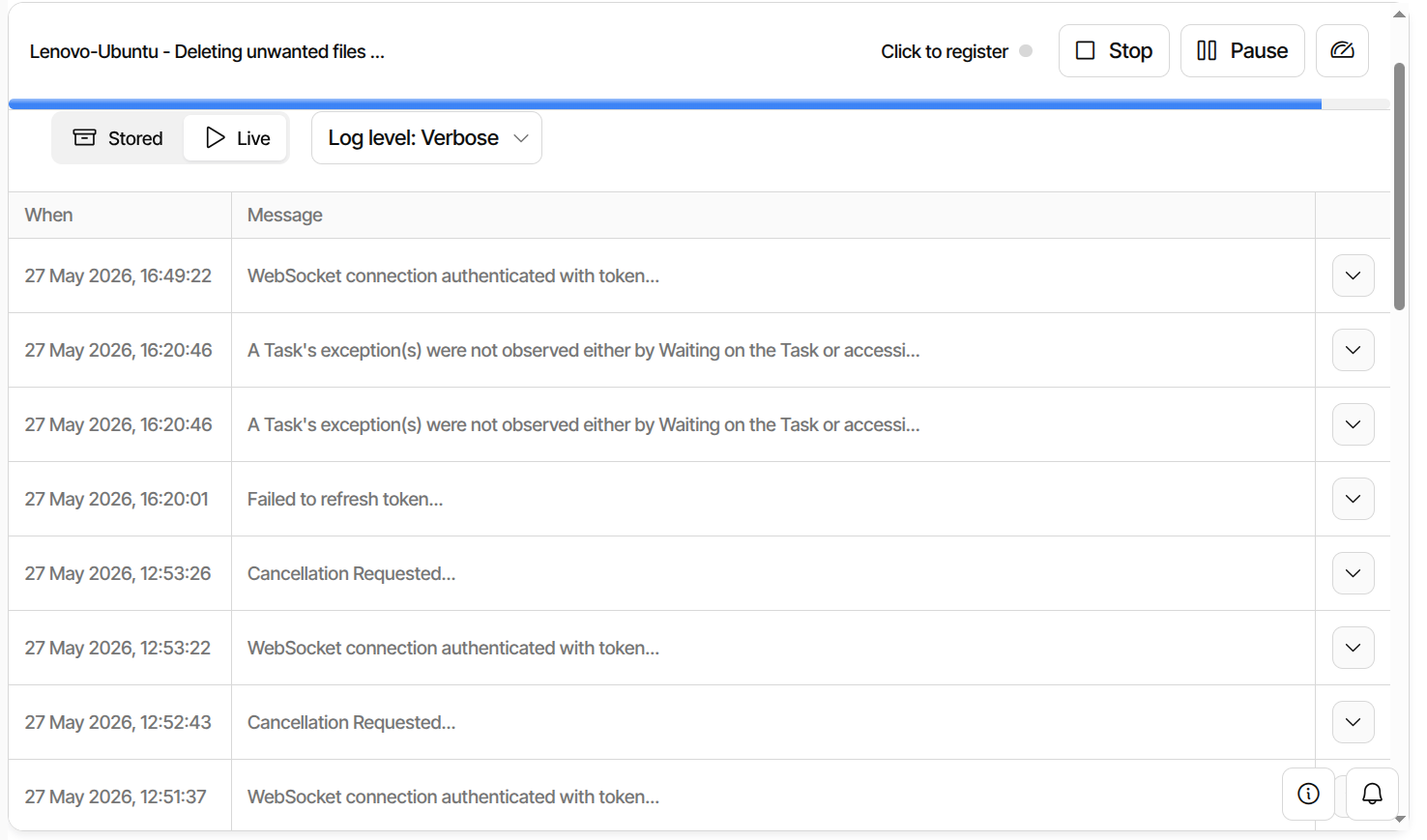
Looking at live log (About Duplicati → Log → Live → Information) can help,
although sometimes Verbose or even Profiling can give more detailed view.
If you prefer a file, set up the log-file and log-file-log-level options.
How did you end automatic job? If you didn’t, you didn’t run manual backup.
You can’t run a backup during another backup, nor can you do a Repair etc.
There’s no Start button, and (as you note), no three dot menu for other work.
Whatever you did (even if it was process kill), I suppose you can do it again,
however now would be an excellent time to check the live log or CPU usage.
I started the manual job 12 hours after the automatic job ended. But that was yesterday. And since the manual job hasn’t ended, a new automatic job did not start.
There does not seem to be any CPU usage, and there are no alert/notifications, except the irrelevant one I mentioned earlier.
If you do manual start or start at login, you can use OS facilities to kill process.
TrayIcon can often not get a stuck Duplicati to exit, but you might not use that?
Lack of CPU use and lack of activity in live log suggests it’s stuck, but doesn’t
show the history, so after Duplicati is back, the live log or file log may still help.
You want to see it doing normal things, and see where that turns into an issue.
You could also try looking in B2 web UI to check last few file names and dates.
If a developer wants to give any advice based on the info seen so far, feel free.
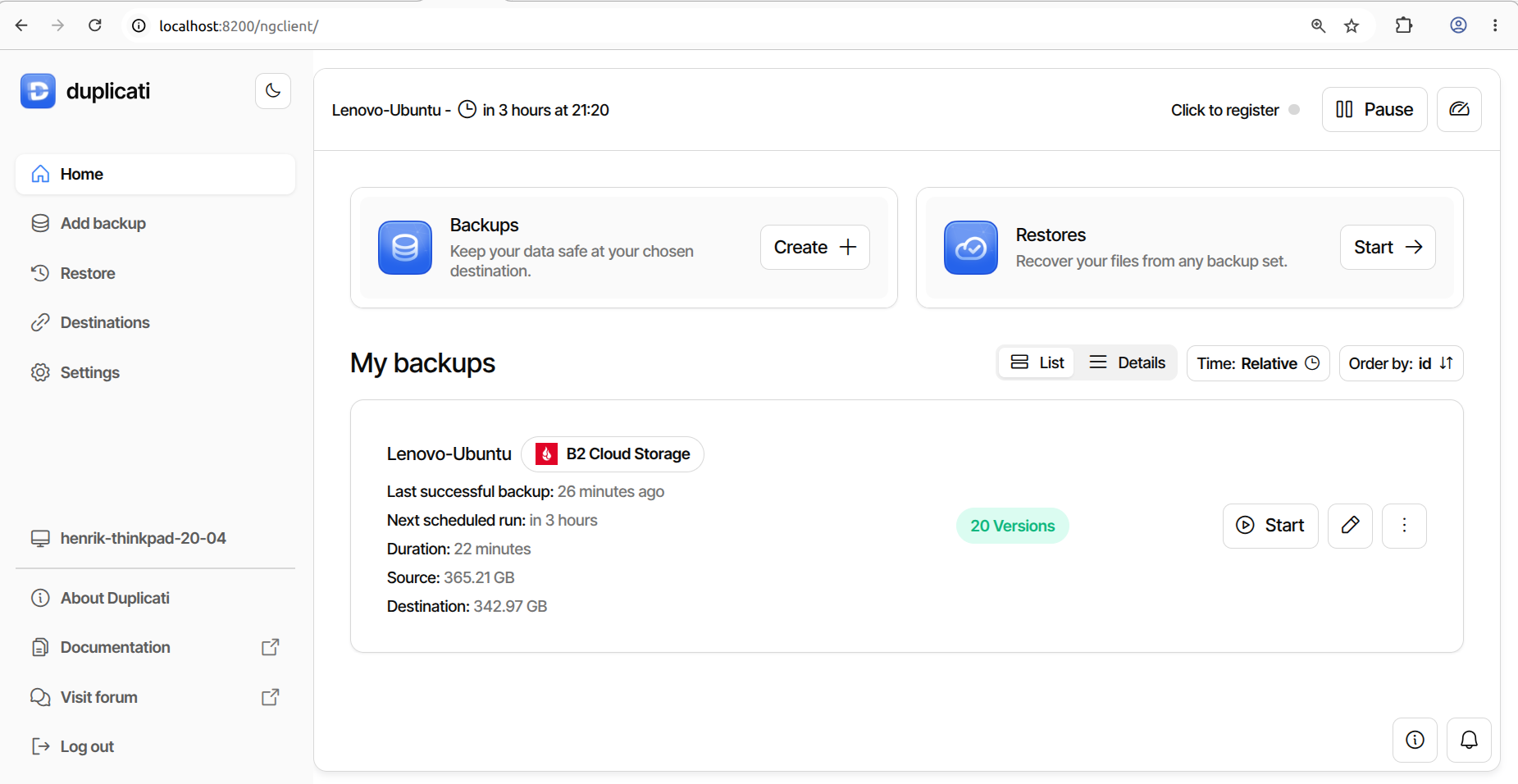
The “sudo systemctl stop duplicati” plus “sudo systemctl restart duplicati” helped. Immediately after, Duplicati started the overdue automatic backup, which ended without problems.
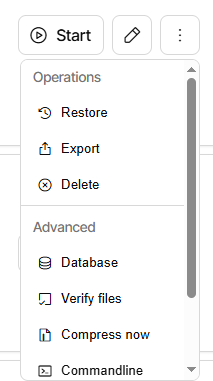
I still would like to run some kind of repair, to ensure that the local database does not think that the B2 cloud server contains something that is not there! But I still do not have any 3-dots-menu! See this screen shot:
Oops…! I guess I had the idea that the 3 dots would be somewhere else on the screen…
Thank you!
But it would be nice with some more information on that menu. For instance “Verify files” - I don’t know what files it verifies… My local database? Or the B2 cloud backup or the relation between the two or ?
Maybe the devs would decide to add some hover-help, but it will likely be brief.
FWIW the legacy UI (still available in Settings) doesn’t have descriptions either.
For some of these things, the Duplicati Documentation can provide some clues.
Verifying backend files (old docs inserted in new, so picture is old UI) describes.
As you can read, it’s largely the same as the default verification after a backup.
Duplicati has a large amount of verification built in (which can also be disabled).
You can feel free to run it again, and running Repair might also give assurance.
Although some of the tests verify database internal consistency as well, usually
the more obvious focus is on making sure Destination “looks” OK – per DB info,
which is considered the record of what should be in cloud. Please review its doc:
The database is essentially a compact view of what data is stored at the remote destination, and as such it can always be created from the remote data.
(or at least one hopes DB can be recreated, but it’s worth testing that sometime,
however if you want to keep old logs you can rename old DB then reinstall later)
Repair button doesn’t say much in GUI on success, but there’s a log. It might say
“2026-05-27 16:12:35 -04 - [Information-Duplicati.Library.Main.Operation.RepairHandler-DatabaseIsSynchronized]: Destination and database are synchronized, not making any changes”
That refers at least to the cloud file listing looking correct, but quite possibly more.
It helps, but it’s just one of several tests, and each one only goes so far.
There is also IMO no substitute for an occasional restore test, and a DB
recreate test if you want to check that you can restore if disaster occurs.
You are right. The best ‘test restore’ must be to recreate the database. I will try that.
BTW! Can you tell me, if I ever have to replace the harddrive or the whole PC, I would need to install Duplicati on the new harddrive/PC. But do you know what information I would need to get Duplicati to read and restore my backup on the Backblaze.com B2 cloud Backup storage?
In a file on the current harddrive I have this information:
an email address
password
Bucket name
Bucket ID
B2 Account ID / B2 Application ID
B2 Application Key
Would I need ALL of that, to actually use the backup?
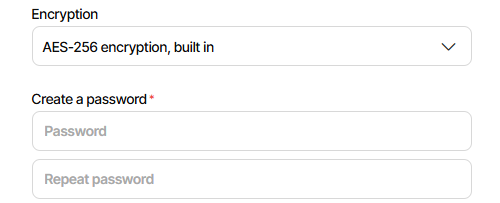
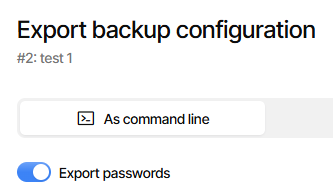
To restore files from the backup, Duplicati needs only to know how to access the files and the encryption passphrase (if any). If you do not have the passphrase, it is not possible to restore.
and look for the --passphrase= value, but it may be altered for your CLI.
Sometimes some character escapes are required, but it should be “close”.
Testing it with a “direct restore” (which you should do anyway) will prove it.